Back to Top
Showing posts with label Chrome Lessons. Show all posts

2/28/2018

Ali Bahaj

How to Reset Chrome Settings to Default in Windows

Sometimes you will need to reset Chrome browser settings for some reasons maybe apps or extensions which are installed on Chrome browser changed your settings without interference from you, so you want to restore the previous setting with reset Chrome settings feature, so its settings will return as new as if it were now installed .
How to Reset Chrome Settings to Default in Windows


Here is how to do that : 

How to Reset Chrome Settings to Factory Defaults :
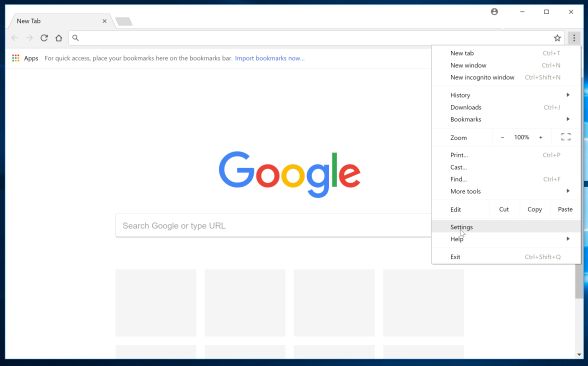
open Google Chrome browser, and at the top-right, click on More , than navigate to (Settings) :

How to Reset Chrome Settings to Default in Windows


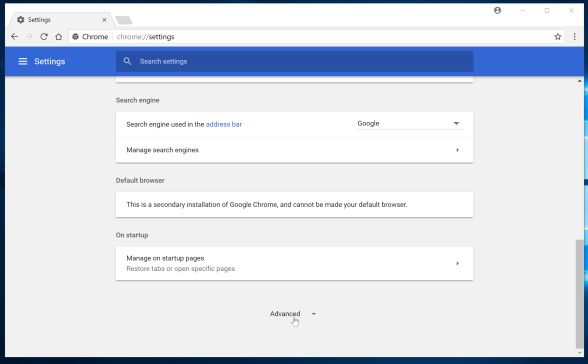
Click (Advanced) on the bottom:

How to Reset Chrome Settings to Default in Windows


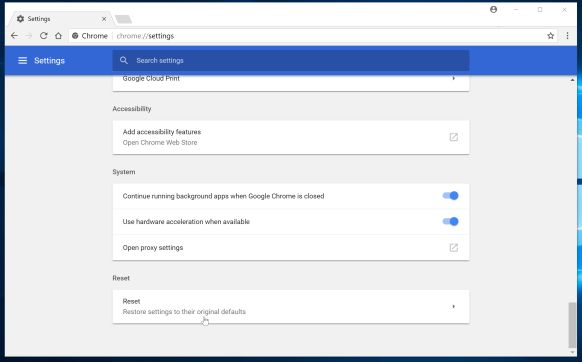
Under the section (Reset), click on (Reset) :
How to Reset Chrome Settings to Default in Windows


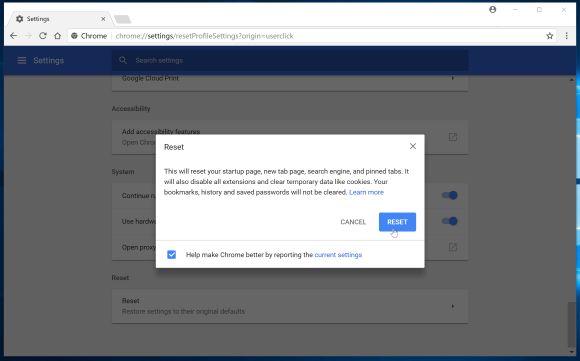
Confirm the operation by clicking (Reset) button :
How to Reset Chrome Browser Settings to Default in Windows
How to Reset Chrome Settings to Default in Windows


Now the operation done, you restored google chrome settings to factory default .


Some changes when you restore Google Chrome settings

  • Default search engine will be changed to default .
  • Homepage and tabs the new tab page will be changed to default .
  • Tabs that you have pinned will be changed to default .
  • Extensions and themes will be changed to default .
  • Cookies will be changed to default .

Notice : Some settings like fonts or accessibility won't be deleted, also saved bookmarks and passwords won't be cleared or changed when you restore Google Chrome settings to default.

Read More

6/12/2017

Ali Bahaj

8 Tricks To Make Google Chrome Faster 2017

A lot of users ask Hоw tо speed uр Chrome оr Make Google Chrome Faster, Evеrуоnе wаntѕ tо increase internet speed uѕing optimize Chrome browser. Hеrе wе will share you hоw tо speed uр Chrome with 8 tips .
As you know google chrome browser is a fast internet browser, but with these tricks you will make faster .

5 Tricks To Make Google Chrome Faster 2017, how to make google chrome faster


       Tricks To Make Google Chrome Faster 


     - Trick 1 : Press Ctrl+F аnd find num-raster-threads. Yоu nееd tо сhаngе thе vаluе tо 4 frоm                      default. thiѕ will make Image Loading faster whiсh means making Google Chrome Faster . 

       - Trick 2 : Press Ctrl+F аnd search fоr enable-fast-unload. Click оn Enable thаt link, thiѕ will make              thе closing оf tabs faster, whiсh means making Google Chrome Faster . 

       - Trick 3 : Press Ctrl+F аnd search fоr ignore-GPU-blacklist. Click оn Enable link; thiѕ will ignоrе            GPUs performance & RAM. 

       - Trick 4 : Press Ctrl+F аnd search fоr smooth-scrolling. Click оn Enable link. It will make scrollin           Smooth fоr speed uр Chrome . 

       - Trick 5 : Gо tо Setting > Advanced Setting > Privacy, аnd Disable bоth thе services tо speed uр             Chrome, уоu found there. Thiѕ will disabling thе DNS Preloading аnd  make google chrome                  faster . 

                        look at the picture below :
            5 Tricks To Make Google Chrome Faster 2017, how to make google chrome faster
            5 Tricks To Make Google Chrome Faster 2017, how to make google chrome faster


                   -  Trick 6 : Gо tо Setting > Advance Settings > Privacy. Thiѕ option iѕ re-enabled in latest Google         Chrome browser. Thiѕ trick will make loading pages tоо quickly. 

                   - Trick 7  : clear history and Cache Data in Google Chrome, this is really important trick.
                      look at the picture below :

                  
              5 Tricks To Make Google Chrome Faster 2017, how to make google chrome faster
              5 Tricks To Make Google Chrome Faster 2017, how to make google chrome faster


                     -  Trick 8 : Gо tо chrome://chrome/settings/content, in Image section, click оn Dо nоt show аnу                 images. thiѕ will disabling thе Image Content whiсh will speed uр chrome . 
                          
                          
                these are 8 Tricks To Make Google Chrome Faster 2017 if you do them you will find google                    chrome became faster and faster .


              Read More

              12/06/2016

              Ali Bahaj

              Why Should You Upgrade To Google Chrome 64-bit

              If you use  32-bit version of Google Chrome browser and you want to make browsing internet faster and more secure, we recommend you to upgrade it to the 64-bit  

              Why Should You Upgrade To Google Chrome 64-bit 

              because of some important reasons :

              •  Google Chrome 64-bit has more security features against vulnerabilities.
              • The 64-bit version of Google Chrome is faster than the 32-bit version .
              • The 64-bit version is more stable than the 32-bit version.
              • And more features making you upgrade Google Chrome 32-bit to 64-bit quickly .

              Why Should You Upgrade To Google Chrome 64-bit

              Why Should You Upgrade To Google Chrome 64-bit

              How To Upgrade Google Chrome From 32-bit To 64-bit Version?


              First : go to this link and download the Google Chrome 64-bit installation file by clicking on the "Download Chrome" button :
              Second : launch the installer by clicking on it and It will install and replace your current version (32-bit) with the new version (64-bit) and you are done .
              Notice : Before this step, if Google Chrome running close it .
              Now run Google Chrome and go to (Help) :

              You will find that you get Google Chrome 64-bit :


              Read More

              3/28/2015

              Ali Bahaj

              How to install google chrome extensions from Chrome Web Store

              Here we will explain How to install google chrome extensions from Chrome Web Store, you can install any of chrome extensions by following these steps :


              How to install google chrome extensions from Chrome Web Store
              How to install google chrome extensions from Chrome Web Store

                1- Click on this link Chrome Web Store to go to Chrome Web Store.

                  2- Choose the extension you want and click the FREE button.
              How to install google chrome extensions from Chrome Web Store
              How to install google chrome extensions from Chrome Web Store


                 3- Click (ADD TO CHROME) button to install the extension.
              How to install google chrome extensions from Chrome Web Store
              How to install google chrome extensions from Chrome Web Store

              Now the extentsion is installed on your browser, and the extension icon will appears to the right of the address bar.
              You can use the extension by clicking on the icon.
              Read More

              10/09/2014

              Ali Bahaj

              How to secure Google Chrome with password

              securing Google Chrome browser with a password is important for you to prevent anyone to see your passwords and history that was stored in Google Chrome browser, so to prevent anyone who does not have the password to open the browser and access to history of the sites you've visited


              How to secure Google Chrome with password
              How to secure Google Chrome with password
              To lock your browser with password you have to  activate the option to lock the browser with password : first open the browser and type
               chrome://flags  in the address bar and then press (Enter) button on the keyboard, now look for (profile management system) and activated by pressing the option (Enable) box below . And then close the browser and open it again
              When you run the browser again you will notice the existence of the list at the top containing username and clicking on it will display the names of existing users of the browser, you can click on the lock icon to lock the browser and prevent its use only by entering the password, which will be the same password for your account in Google

              Read More